A permission request is not automatically dangerous. A map may need your location, a video-call service may need the camera and microphone, and a document editor may need access to a file you selected. The timing and purpose of the request matter. On an unfamiliar website, use one simple rule:
If you did not intentionally start a feature that clearly needs the permission, choose Block, Deny, or Never Allow.
Blocking a request rarely prevents you from changing the decision later. Granting unnecessary access first and reviewing it afterward creates more risk.

Block Permissions That Do Not Match What You Are Doing
Before selecting Allow, ask what feature you just started. A permission request that appears immediately after opening a page deserves more caution than one that appears after you select “Start video call,” “Find nearby stores,” or “Upload file.”
Chrome supports one-time access for permissions such as camera, location, and microphone. Selecting Allow this time limits access to the current visit, while persistent access may continue during future visits. On an unfamiliar but potentially legitimate site, one-time access is safer than permanent approval.
| Permission | Usually reject when | Consider allowing when |
|---|---|---|
| Notifications | The site is unfamiliar, or you only need to read or download something once | You regularly use the site and deliberately want alerts from it |
| Location | The page is an article, forum, download page, or service that does not need your location | You intentionally use a map, local weather, delivery, or nearby-store feature |
| Camera and microphone | The request appears before you start any recording or communication feature | You begin a trusted video call, identity check, scanner, or recording tool |
| Clipboard | The site asks to read copied text or images without a clear reason | You deliberately use a tool whose main function requires clipboard access |
| Files, folders, or automatic downloads | Access is requested when the page opens or before you select a file | You intentionally upload, edit, export, or save a specific document |
| Motion sensors, Bluetooth, USB, or local network | The website is ordinary content and has no device-related function | You intentionally use VR, fitness tracking, printing, hardware setup, or device control |
Location access can reveal an approximate or precise position, depending on the browser and device settings. Chrome also lists clipboard, motion sensors, file editing, Bluetooth, USB, and local-network access among the permissions websites may request.
Notification requests deserve particular caution. Once allowed, a website may send alerts after you have left the page. Those alerts can be useful for a service you actively follow, but an unfamiliar site does not need notification access merely to display an article, video, or download page. Chrome and Samsung both provide controls for disabling website notifications later.
Leave When the Website Pressures You to Click Allow
Be cautious when a website presents a message such as:
- “Click Allow to continue”
- “Enable notifications to prove you are not a robot”
- “Allow access before downloading”
- “Your device needs an update”
- “Permission required to view this article”
A permission prompt should correspond to a feature you requested. If ordinary content is hidden behind an unrelated notification, clipboard, camera, microphone, or device-access request, close the tab and use another source.
Do not repeatedly press buttons to discover which one produces the real download. A page that keeps reopening the same permission dialog, redirects you after denial, or uses a countdown to create pressure is giving you a reason to leave—not a reason to approve the request.
Camera and microphone access also require context. A legitimate calling or recording service may need both, but a shopping page or ordinary news article normally does not. If you have already granted persistent access, the browser may remember that choice and may not display the same prompt on the next visit. This is why previously approved sites should be reviewed periodically. Chrome and Safari both let users set camera and microphone access to ask, deny, or allow on a site-by-site basis.
Rejecting a permission does not prove that the website is malicious. The page may simply be poorly designed or request access too early. The safer response is still to deny first and reconsider only after the site clearly explains why the feature is necessary.

Revoke Access and Use One-Time Permission When You Return
If you clicked Allow by mistake, remove the permission before revisiting the website.
Chrome on a computer
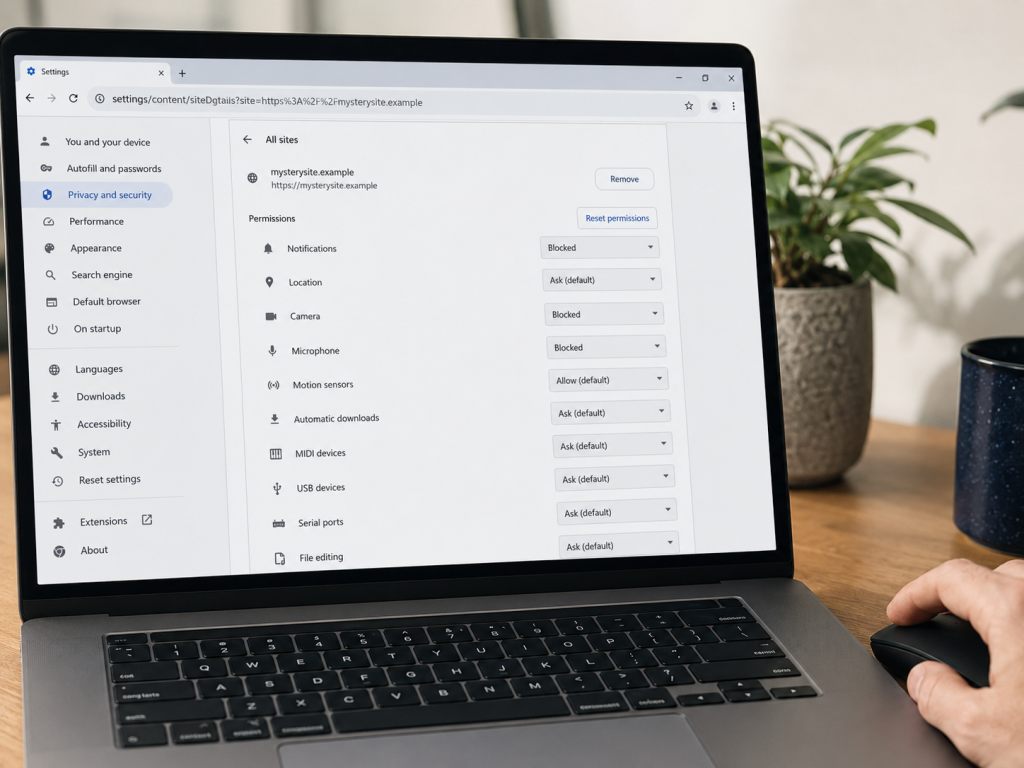
Open the website, select the site-information icon beside the address, and choose Site settings. Change the relevant permission or use Reset permissions when available. You can also open Settings → Privacy and security → Site settings to review permissions across websites. Chrome additionally allows stored data for individual sites to be reviewed or deleted.
Chrome on Android
Open the website, tap the site-information icon beside the address, then open Permissions. Change the individual setting or tap Reset permissions. To review all websites, use Chrome → Settings → Site settings.
Samsung Internet on a Galaxy device
In Samsung Internet, open Menu → Settings → Sites and downloads → Site permissions to review browser-level site settings. For unwanted website notifications, Galaxy devices also allow you to open Settings → Notifications, select Samsung Internet or Chrome, and turn off the relevant website under Sites. Menu names may vary slightly by device and software version.
Remember that website permission and Android app permission are separate layers. If Samsung Internet or Chrome has system-level access to the camera, microphone, or location, you can review it through Settings → Security and privacy → Permission manager and change the browser app’s access.
Safari on iPhone or iPad
Open Settings → Apps → Safari, then review Camera, Microphone, and Location. Each can be set to Ask, Deny, or Allow. For one specific website, open it in Safari, use the Page Menu, select More, and change the options under that website’s settings.
Safari on Mac
Open Safari → Settings → Websites. Select Camera, Microphone, Location, or another available category, then change the setting for the relevant website to Ask, Deny, or Allow.
When a legitimate feature needs access, grant only the minimum permission required. Prefer Allow this time or Ask instead of permanent access, and deny the request again when the feature is no longer needed.
Grant Only the Permissions You Need and Revoke Them After Use
The safest decision process is:
Confirm the feature you started → check whether the permission is necessary → use one-time access when possible → revoke it after use.
An unfamiliar website should earn access to your device one feature at a time. It should not receive notifications, location, camera, microphone, clipboard, or file access merely because you opened the page.